How to Connect to Your Forex VPS: 4 Easy Methods
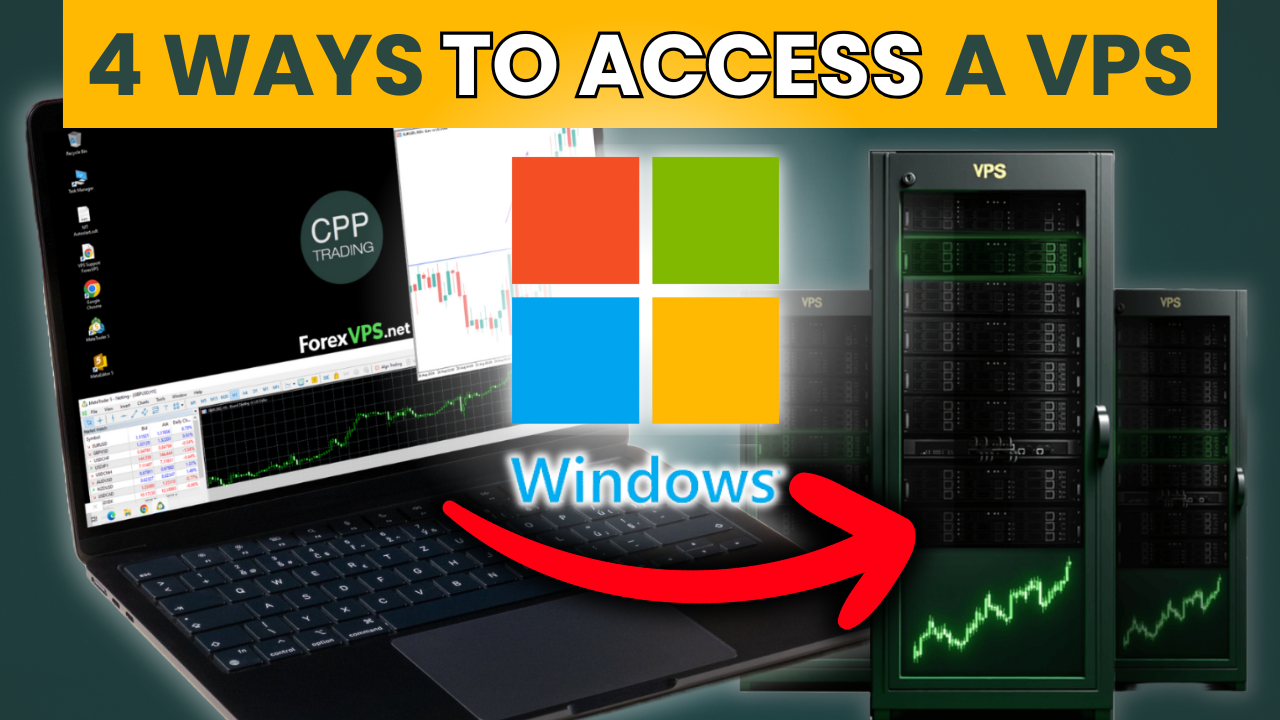
A Virtual Private Server (VPS) is an important tool for traders who want the best trade execution or run automated trading systems 24/7 without interruption. In this guide, we will cover four ways to log into your Forex VPS and access your trading platform from anywhere.
–> Watch the video in this article for a complete tutorial!
Choosing a VPS Provider
Method 1: Desktop Connection (RDP) – Best for Speed & Usability
Method 2: VNC Connection – A Backup Access Option
Method 3: Browser-Based Connection – Ideal for Travel
Method 4: Windows Remote Desktop Connection (RDC) – Built-in Windows Tool
Video Tutorial (Step-by-step)
Choosing a VPS Provider
If you don’t have a VPS yet and are looking for a reliable VPS for trading, we highly recommend ForexVPS. At CPP Trading, we use ForexVPS for its fast execution, reliability, and excellent performance. Whether you’re an automated trader using Expert Advisors (EAs) and algorithms or a manual trader who simply wants peace of mind, this VPS ensures your platform runs smoothly with minimal latency. The basic/standard plan works well for most traders, and you can save 20% by using a free discount code: “CPP20“
How can I connect to my VPS?:
- Visit ForexVPS and choose your plan.
- Choose your server location (e.g., New York for better execution speed).
- Apply the discount code CPP20 at checkout to save 20%.
- Sign up and receive your VPS login details via email.
Once you have your VPS set up, you’ll see a list of your active servers in your account. You can then choose one of the following methods to log in and connect to your VPS.
Method 1: Desktop Connection (RDP) – Best for Speed & Usability
The Remote Desktop Protocol (RDP) is the most efficient and user-friendly way to connect to your VPS.
Steps:
- Click on Desktop Connection (RDP) in your VPS account.
- Download the RDP file and move it to your desktop.
- Double-click the file to open it.
- Enter your login details:
- Username: Trader
- Password: Found in your email.
- Click OK to connect.
- You now have full access to your VPS, which works like a normal Windows desktop.
Pros & Cons:
✔ Fastest and most stable connection.
✔ Full-screen mode with high resolution.
✔ Supports copy-paste between your computer and VPS.
✖ Requires Windows or an RDP client on Mac.

Exclusive Rebates for CPP Traders
Earn a $1+ rebate for every standard lot traded when you open an account through CPP Trading.
✓ No added cost
✓ Paid automatically
✓ Earn $1+ per lot
✓ Lifetime rebates
Method 2: VNC Connection – A Backup Access Option
The Remote Desktop Protocol (RDP) is the most efficient and user-friendly way to Virtual Network Computing (VNC) is a slower but reliable alternative if RDP isn’t working.
Steps:
- Click on Launch in VNC in your VPS account.
- Wait for the login screen to appear (this may take a minute).
- Enter the same password from your email.
- Note that copy-paste may not work, so you’ll need to type your password manually.
Pros & Cons:
✔ Works as an emergency access option.
✖ Slower connection than RDP.
✖ Smaller window size than RDP.
✖ No copy-paste support.
Method 3: Browser-Based Connection – Ideal for Travel
If you don’t have access to your regular computer, you can use the browser login option.
Steps:
- Log into your VPS account.
- Click Launch in Browser.
- Enter your password from your email.
- Connect and start using your VPS.
Pros & Cons:
✔ No software installation required – great for traveling.
✔ Can be used on any device with a web browser.
✖ Slightly slower performance compared to RDP.
✖ Limited functionality compared to RDP.
Method 4: Windows Remote Desktop Connection (RDC) – Built-in Windows Tool
If you don’t have access to your regular computer, you can use the browser login o
For Windows users, Remote Desktop Connection (RDC) is a built-in alternative to RDP.
Steps:
- Click the Windows Start menu and search for Remote Desktop Connection.
- Open the application and enter your VPS IP address.
- Click Connect.
- Enter your password and click OK.
- Confirm the security prompt and start using your VPS.
Pros & Cons:
✔ No need to download an additional RDP client.
✔ Stable and secure connection.
✖ Limited to Windows devices.
✖ Requires IP address input manually.
Video Tutorial (Step-by-step)
Setting up a VPS and connecting to it might seem difficult, but this step-by-step guide will walk you through the whole process. These four options enable you to use your VPS efficiently and effectively. Watch the video below to learn how to set up your VPS, connect to it, and optimize it for trading.
The #1 VPS for Traders – Trade 24/7 with the lowest latency.
Video Link: https://youtu.be/at7AgNSRMqQ
Now that you know how to log into your VPS, you’re ready to set up your MetaTrader platform and start trading. Check out my other video tutorial on how to install and configure MetaTrader on a VPS.
Also, if you’re looking for a reliable broker and want the lowest commissions and trading fees while getting the best execution, open an account through our website or click here and get exclusive commission rebates and special offers as a CPP Trader—all for FREE.
At CPP Trading, we learn, earn, and grow together as a community!
Have questions or thoughts? Leave them in the comments below – we’d love to hear from you! If you found this post helpful, give it a like and make sure to stay tuned for more content.
Trade safe,
Ian
Founder & Head Mentor of CPP Trading
Follow us for free trading education and career opportunities.